
Customer feedback
Where Customers are asked for a rating and what each place does after it, the rating scale, the add-on and the switch, the dashboard, the Review journal, reply requests and who hears about a review.
Updated
Where Customers are asked
Customers are asked for a rating in four places:
- 7Stamp Scanner in Terminal Mode;
- the permanent QR printed for a Staff Login;
- the Chatbot in Telegram or WhatsApp;
- the Business’s own POS through the Integration API.
Each place has a flow of its own, described below. The Self-Service Kiosk, the Wallet pass and 7Stamp Scanner outside Terminal Mode never ask for a rating.
Where can my Customers leave a rating?
In 7Stamp Scanner in Terminal Mode, on the permanent QR printed for a Staff Login, in the Chatbot in Telegram or WhatsApp, and on your own POS through the Integration API.
Does the Self-Service Kiosk ask for a rating?
No. The Self-Service Kiosk, the Wallet pass and 7Stamp Scanner outside Terminal Mode never ask.
Do all four places work the same way?
No. Each has its own flow — one tap in Terminal Mode, follow-up pages on the printed QR and on a POS that sends the order id, and a request in the Chatbot.
Terminal Mode: one tap
In Terminal Mode the rating screen follows an operation only when the screen has nothing else to show: no reward reached, no Voucher issued, no active Voucher the Customer already holds and no lottery waiting to be spun.
One tap stores the rating, and the screen clears for the next Customer. This channel has no comment, no photo, no follow-up page and no Google review link.
Why didn’t Terminal Mode ask a Customer for a rating?
The rating screen shows only when there is nothing else to show — no reward reached, no Voucher issued, no active Voucher the Customer already holds and no lottery waiting to be spun.
Can a Customer write a comment in Terminal Mode?
No. One tap stores the rating and the screen clears for the next Customer. There is no comment, photo or follow-up page on this channel.
Does Terminal Mode offer a Google review?
No. Terminal Mode never offers a Google review link.
Your own POS through the API
A POS connected through the Integration API gets the rating screen with each operation. When it sends the order id, every option carries the page it leads to: a negative rating opens a private page for the manager, a neutral or positive one a page that can offer a Google review.
The page with the Google button is spaced out. A Customer the POS identifies is offered it at most once in ninety days. Without that identifier it is offered on every fifth purchase at a terminal, not more often than every fifteen minutes and at most twenty times a day.
The page for the manager after a negative rating is offered to the same Customer at most once a day; without an identifier, at most once every five minutes per terminal.
What does a Customer see after rating on our POS?
When the POS sends the order id, a negative rating opens a private page for the manager, and a neutral or positive one a page that can offer a Google review.
Why isn’t every happy Customer on our POS offered a Google review?
The offer is spaced out — at most once in ninety days for a Customer the POS identifies; without an identifier, every fifth purchase at a terminal, not more often than every fifteen minutes and at most twenty times a day.
How often can the same Customer reach the manager’s page on a POS?
At most once a day; without an identifier, at most once every five minutes per terminal.
The printed QR
Each Staff Login can have a permanent QR to print, for a table or the till. It opens a rating page on the Business’s scale; the Customer needs no purchase, no Stamp card and no sign-in.
After the tap, a negative rating opens the private page for the manager, any other rating the page that can offer a Google review. On the printed QR this page comes every time, with no spacing. The Google review link is set on each Staff Login’s page; a Staff Login without one leads to the same page without the Google button.
A printed QR stops working when its Staff Login is switched off or deleted, and when its link is regenerated or revoked. While collecting is off or the Customer Feedback add-on is not paid, the page shows the Customer an error instead of the scale. One Staff Login’s QR takes at most sixty ratings an hour; past that the page asks the Customer to try later.
Does a Customer need a Stamp card to rate us through the printed QR?
No. The printed QR needs no purchase, no Stamp card and no sign-in.
Why is there no Google button after a good rating on the printed QR?
Its Staff Login has no Google review link. The link is set on each Staff Login’s page.
Our printed QR shows an error. Why?
Collecting is off, the Customer Feedback add-on is not paid, or the QR no longer works — its Staff Login was switched off or deleted, or its link was regenerated or revoked.
Is there a limit on ratings through one QR?
Yes. One Staff Login’s QR takes at most sixty ratings an hour; past that the page asks the Customer to try later.
The Chatbot
The Chatbot asks in two ways, each switched on its own in Settings → Customer feedback:
- a request after every operation that added stamps, sent as the last message;
- a button in the Chatbot’s menu.
In Telegram the Chatbot asks on the Business’s scale inside the chat. In WhatsApp it sends a link to a web page that asks on the same scale; the written comment there is optional.
The Chatbot needs only the Collecting feedback switch, not the Customer Feedback add-on. The switch itself can be turned on only while the add-on is paid, so only a Business that collected before the add-on existed has a Chatbot asking without it.
How does the Chatbot ask for a rating?
In two ways, each switched on its own in Settings → Customer feedback — a request after every operation that added stamps, and a button in the Chatbot’s menu.
How do Customers rate us in WhatsApp?
The Chatbot sends a link to a web page that asks on your scale. A written comment there is optional.
Does the Chatbot need the Customer Feedback add-on?
The Chatbot needs only the Collecting feedback switch. The switch can be turned on only while the add-on is paid, so in practice a Business needs the add-on to start collecting.
The follow-up page and Google
On the printed QR and a POS that sends the order id, a rating leads to a follow-up page. It works for fifteen minutes and can be sent once. On it the Customer may add a comment; on the manager page also up to three photos and a contact for a reply. Everything sent joins the same review in the journal.
A Google review is offered only on the page that follows a neutral or positive rating. The page after a negative rating is for the manager and never carries a link to Google.
You cannot set which ratings go on to Google or how often Customers are asked: both are fixed by the product, and whether a Customer is offered the follow-up page never depends on how they rated.
How long does the follow-up page work?
Fifteen minutes, and it can be sent once.
Can a Customer attach photos to a complaint?
Yes, up to three photos on the manager page, with a comment and a contact for a reply.
Can I send only five-star ratings to Google?
No. Which ratings go on to Google and how often Customers are asked are fixed by the product. A Google review is offered after a neutral or positive rating, never after a negative one.
Rating scale
There are three scales: Stars (five stars), Faces (five faces, from angry to delighted) and Numbers (one to ten). The scale is chosen once for the Business, under Rating scale in the Customer feedback settings, and every place asks on it — Terminal Mode, the printed QR, the POS and the Chatbot in Telegram and WhatsApp. A change applies to the next rating at once.
Each rating is read as positive, neutral or negative by its scale:
| Scale | Positive | Neutral | Negative |
|---|---|---|---|
| Stars | five | four | one to three |
| Faces | the two happy faces | the middle one | the two unhappy ones |
| Numbers | nine and ten | seven and eight | one to six |
Ratings already left keep the scale and the reading they were left with. The dashboard counts sentiment across scales, but averages and the distribution are shown per scale and never merged.
Can I use stars in the Chatbot and faces in Terminal Mode?
No. The scale is chosen once for the Business and every place asks on it.
Is four stars a good rating?
Four stars is read as neutral. Five is positive, one to three negative.
What happens to old ratings if I change the scale?
They keep the scale and the reading they were left with. Averages and the distribution are shown per scale and never merged.
Settings, the add-on and the switch
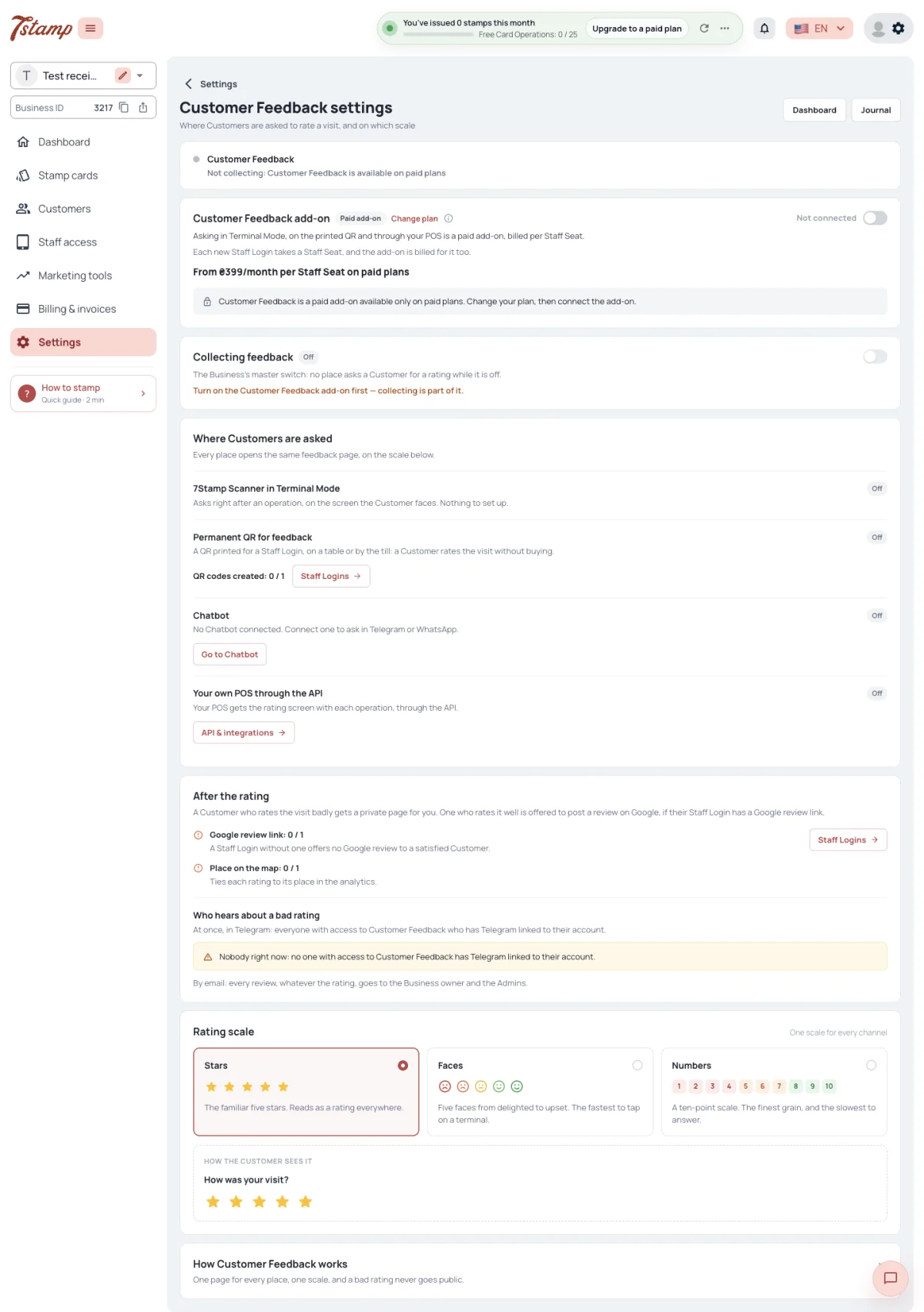
In 7Stamp the settings are under Settings → Customer feedback: a status line, the Customer Feedback add-on, the Collecting feedback switch, where Customers are asked, what follows a rating, the rating scale and how it works. 7Feedback shows a shorter version in a tab of its own Settings: the add-on, the switch, a note on Staff Logins and the scale.
Collecting feedback is the Business’s master switch: while it is off, no place asks for a rating, the Chatbot included. Turning it on needs the Customer Feedback add-on; turning it off is always possible.
Terminal Mode, the printed QR and the POS ask only while the add-on is paid and collecting is on. It is checked on every rating screen, so switching the add-on off stops these three at once, while the Chatbot keeps asking.
The add-on is available on paid plans only; on Free Forever the admin offers to change the plan first. In 7Stamp it costs $9 / €9 / 399 ₴ a month per Staff Login: every created Staff Login counts, switched-off ones too, deleted ones don’t. Only an Admin of the Business can connect or switch it off. A Managed Business of a White Label partner cannot buy it itself, and an add-on that came with an Access Code cannot be switched off in the admin.
Where do I turn Customer feedback on?
In 7Stamp, under Settings → Customer feedback — connect the Customer Feedback add-on, then turn on Collecting feedback.
Can I collect feedback on Free Forever?
No. The Customer Feedback add-on is available on paid plans only; on Free Forever the admin offers to change the plan first.
I switched the add-on off. Why does the Chatbot still ask?
Switching the add-on off stops Terminal Mode, the printed QR and the POS at once. The Chatbot depends only on the Collecting feedback switch — turn that off to stop it.
Why can’t I connect the add-on?
Only an Admin of the Business can connect it, and only on a paid plan. A Managed Business of a White Label partner cannot buy it itself.
Plans with a review allowance
A plan can include a set number of reviews per period. When they are used up, no channel asks any more, the Chatbot included, and the Business’s admins get a notice at most once a week. Paid plans and the 7Stamp add-on have no such limit.
The 7Feedback admin shows Admins a banner in the header with the plan’s review allowance: reviews collected, reviews left, or that collection is off.
Is there a limit on how many reviews I collect with the 7Stamp add-on?
No. Paid plans and the 7Stamp add-on have no review allowance.
What happens when a plan’s reviews are used up?
No channel asks any more, the Chatbot included, and your admins get a notice at most once a week.
Where do I see how many reviews are left in 7Feedback?
In the banner in the header of the 7Feedback admin, shown to Admins.
The dashboard
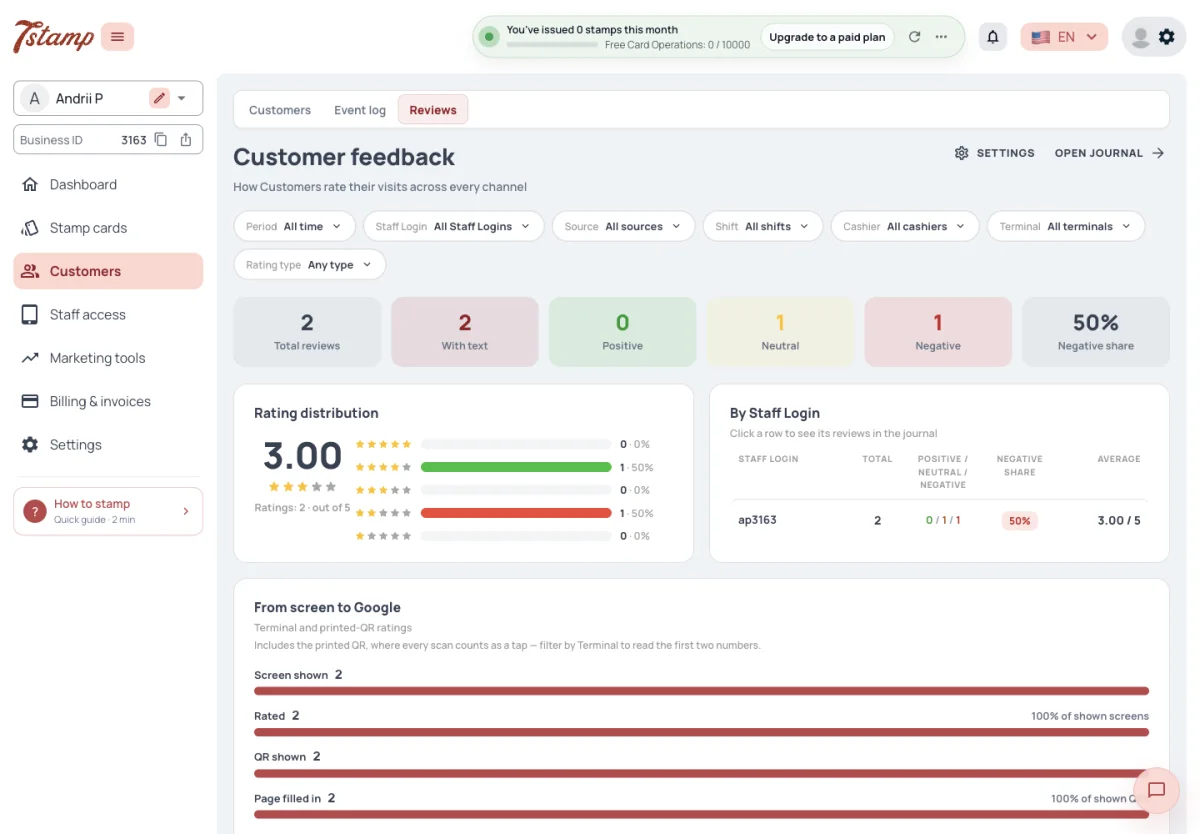
In 7Stamp the dashboard and the journal are the Reviews tab of Customers. In 7Feedback the dashboard, the Review journal and the settings are items of the main menu. The screens and rules behind them are the same.
The dashboard shows Total reviews, With text, Positive, Neutral, Negative and Negative share for the chosen filters. Negative share is the negative ratings out of all positive, neutral and negative ones. Ratings with no reading — left before readings were recorded, or on an option no longer on the scale — are counted apart, get one more tile when there are any, and are left out of the Negative share.
Rating distribution shows how many ratings each option got, with the count, share and average, separately for each scale. By Staff Login lists each Staff Login with its total, positive, neutral and negative counts, negative share and average, busiest first; ratings from the Chatbot and the web page are gathered in one Online row. A click on a row opens its reviews in the journal.
Where is Customer feedback in the 7Stamp admin?
The dashboard and the journal are the Reviews tab of Customers; the settings are under Settings.
How is Negative share counted?
Negative ratings out of all positive, neutral and negative ones. Ratings with no sentiment are left out.
What is the Online row in By Staff Login?
Ratings from the Chatbot and the web page, gathered in one row.
Filters and sources
The dashboard and the journal filter by Period, Staff Login, Source, Shift, Cashier, Terminal and Rating type. Shift, Cashier and Terminal offer the values a POS reported; choosing one leaves only ratings left at a counter.
Period offers All time, Today, Last seven days, Last thirty days, This month and Previous month, counted in the Business’s time zone.
Source is one of Terminal (Terminal Mode or a POS), Printed QR, Chatbot or Web card. Ratings left before the source was recorded show Source not recorded.
Can I tell Terminal Mode ratings from POS ratings?
Not by Source — both show as Terminal. Shift, Cashier and Terminal carry the values a POS reported.
Which time zone does the Period filter use?
Your Business’s time zone.
Why do some ratings say Source not recorded?
They were left before the source was recorded.
From screen to Google
The From screen to Google card on the dashboard has five steps:
- Screen shown — rating screens offered;
- Rated — those answered;
- QR shown — the follow-up QRs a POS drew, plus every printed-QR rating;
- Page filled in — the follow-up pages sent;
- Went to Google — taps on the Google button, once per visit.
The funnel counts only the printed QR and a POS that sends the order id. Ratings from Terminal Mode, the Chatbot and the WhatsApp web page are not in it. It follows the Period, Staff Login and Source filters only.
Why are my Terminal Mode ratings missing from From screen to Google?
The funnel counts only the printed QR and a POS that sends the order id. Terminal Mode, the Chatbot and the WhatsApp web page are not in it.
What does QR shown count?
The follow-up QRs a POS drew, plus every rating left on the printed QR.
Does Went to Google mean a review was posted?
No. It counts taps on the Google button, once per visit.
The Review journal
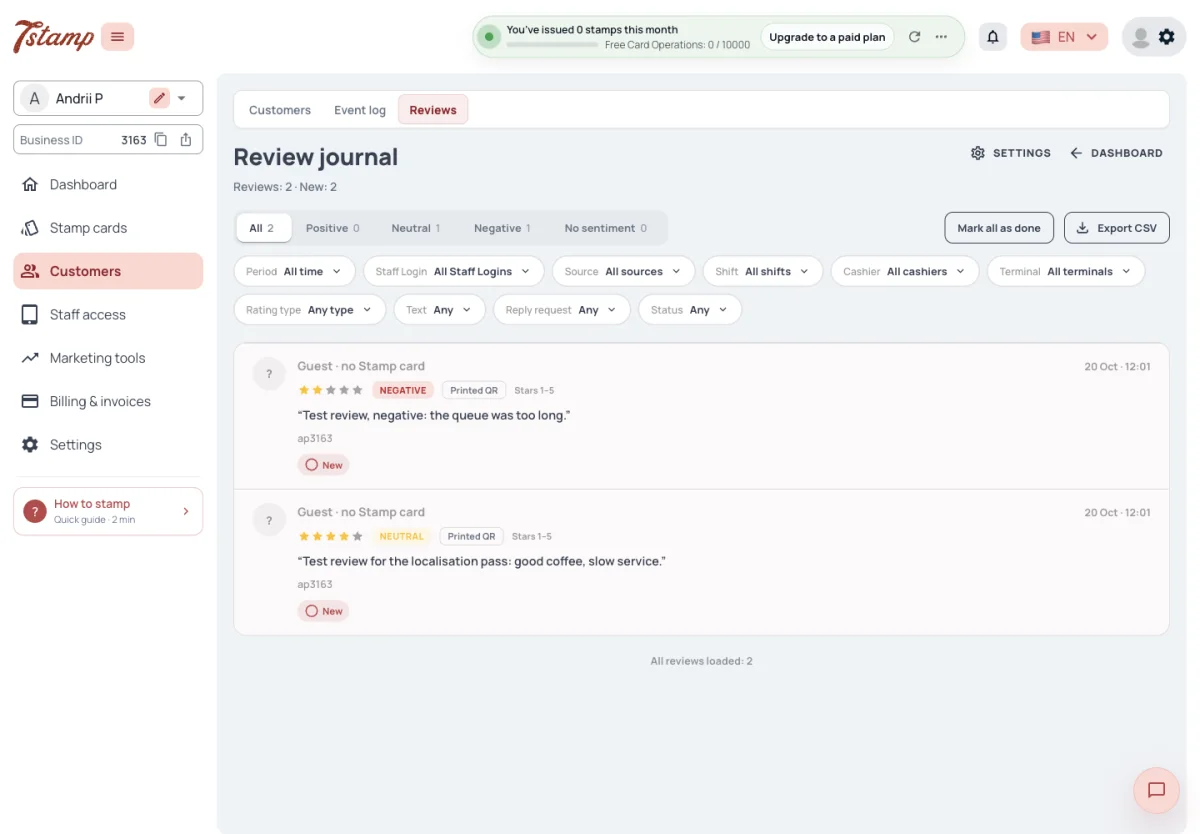
The Review journal lists every review, newest first, with the Customer (or “Guest · no Stamp card”), time, rating, sentiment, source, scale, text, Staff Login and status. Tabs All, Positive, Neutral, Negative and one for ratings without a sentiment carry their counts. On top of the dashboard’s filters there are Text (with or without), Reply request (waiting for a reply, answered or none) and Status (New or Done).
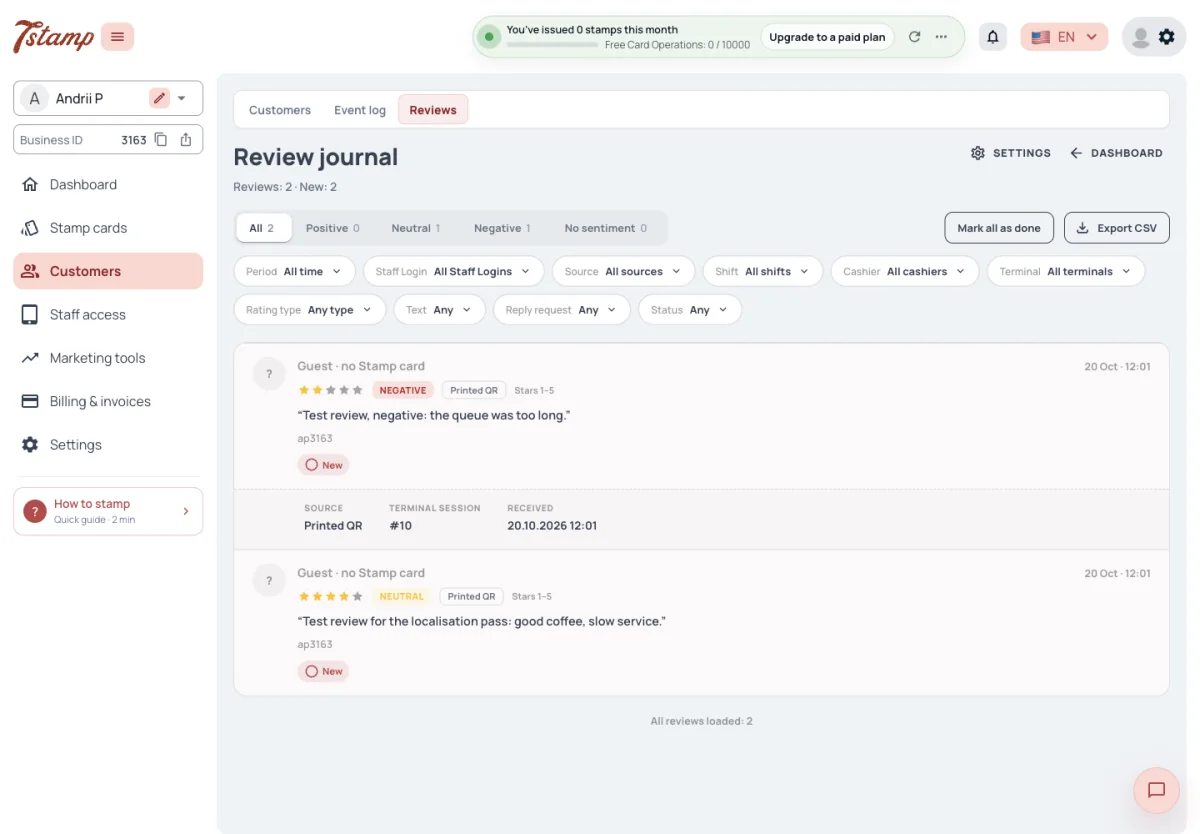
An expanded row adds the operation, terminal, shift, cashier, receipt amount, Customer email, time received, photos and the reply request.
A review is New until someone marks it Done, however old it is. Each row has Mark as done and Mark as new. Mark all as done marks every New review that matches the journal’s filters, not only the ones loaded on screen; a review already Done keeps who marked it and when.
Export CSV downloads the journal as currently filtered, up to five thousand reviews, with the rating, sentiment, source, texts, Customer, Staff Login, operation details and any reply contact. Anyone who can open the journal can export it.
Do old reviews become Done by themselves?
No. A review stays New until someone marks it Done, however old it is.
Does Mark all as done touch reviews I haven’t scrolled to?
Yes. It marks every New review that matches the journal’s filters, not only the ones loaded on screen.
Can I export the reviews?
Yes. Export CSV downloads the journal as currently filtered, up to five thousand reviews, reply contacts included.
What does “Guest · no Stamp card” mean?
It stands where the Customer’s name would be, for a rating left without a Stamp card.
Reply requests
After a negative rating on the printed QR or a POS, the Customer can leave a WhatsApp, Telegram or phone contact and agree to be contacted about this one review. The journal marks such a review Waiting for a reply and shows the contact. It is not a marketing contact.
The admin panel does not send the answer itself. Contact the Customer by the channel they left, then mark the reply request answered in the journal; it can be put back to waiting.
Each contact is shown with a removal date ninety days after it was left. The contact is not deleted automatically on that date.
How do I answer a Customer who asked for a reply?
Contact them by the channel they left — WhatsApp, Telegram or phone — then mark the reply request answered in the journal.
Can I use the reply contact for marketing?
It is not a marketing contact. The Customer agreed to be contacted about this one review only.
Can I undo Answered on a reply request?
Yes. It can be put back to waiting.
Who hears about a review
A negative rating on the printed QR or a POS sends an immediate Telegram message with the Staff Login, terminal, shift, cashier, time and amount. It goes to the Business’s Admins and users with CRM access who have Telegram linked. Neutral and positive ratings on these two channels send no Telegram message.
Ratings from Terminal Mode, the Chatbot and the WhatsApp web page send a Telegram message about every rating, whatever it is, to the same people.
Every new review, from any channel, is also emailed to the Business owner and to the Admins and users with CRM access. In 7Stamp the email carries the rating, text, photos and the Customer’s contacts, with no buttons. These emails do not count against the Business’s Emails allowance and are sent even when it is used up. Only a Business that sends through a Branded sender has them counted, like every email it sends, and even there they are never held back.
Every new review also sends a Webhook event with entity review and action
created. It goes to the Business’s Webhooks that have Reviews ticked among
their objects on the Webhook’s page; a Webhook added under API & integrations is
set up for Stamp card events only and gets reviews once Reviews is ticked there.
Who gets a Telegram message about a bad rating?
The Business’s Admins and users with CRM access who have Telegram linked to their account.
Do I get a Telegram message about good ratings too?
From Terminal Mode, the Chatbot and the WhatsApp web page — yes, about every rating. From the printed QR and a POS — only about negative ones.
Are reviews sent by email?
Yes. Every new review, from any channel and whatever the rating, is emailed to the Business owner and to the Admins and users with CRM access.
Do the review emails use up my Emails allowance?
No. They do not count against the Emails allowance and go out even when it is used up. Only with a Branded sender are they counted, like every email sent through it, and even then never held back.
Can my system get new reviews through a Webhook?
Yes. Tick Reviews among the objects on the Webhook’s page; every new review then arrives with entity review and action created.
Who can do what
Every admin panel user of the Business, Viewer included, can open the dashboard and the Review journal and export it. Marking reviews Done or New, marking a reply request answered, the Collecting feedback switch and the scale need Editor or Admin. The add-on needs Admin.
Can a Viewer see the reviews?
Yes. Every admin panel user, Viewer included, can open the dashboard and the Review journal and export it.
Why can’t I mark reviews as done?
Marking reviews Done or New and marking a reply request answered need Editor or Admin.
Who can connect the Customer Feedback add-on?
Only an Admin of the Business.