The admin panel
What is in the 7Feedback menu, what the Business page shows, how the header banner counts reviews, and where the Customer data export and Delete Business are.
Updated
The menu
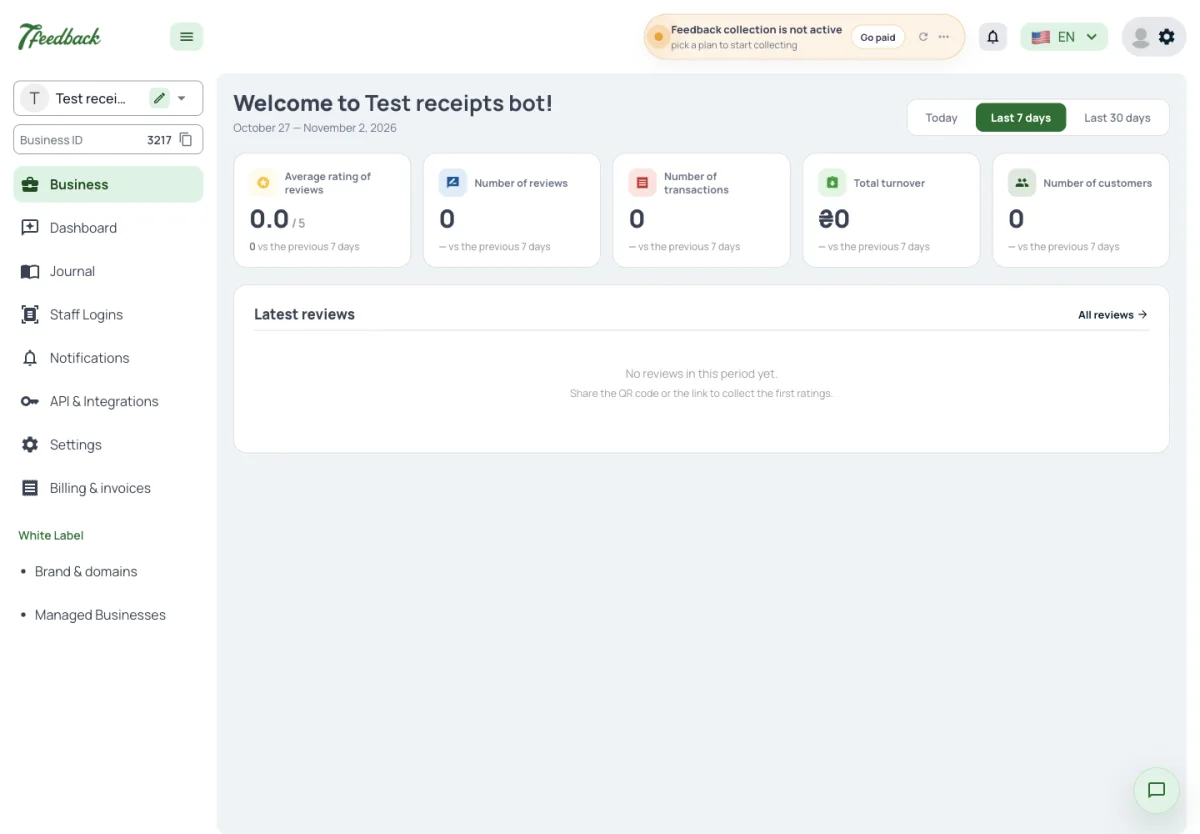
The menu holds everything 7Feedback does. What you read comes first, what you set up after it, and Settings, billing and White Label are last:
- Business — the overview of the Business;
- Dashboard and Journal — the ratings and the Review journal;
- Staff Logins — the workstations and their printed QR;
- Notifications;
- API & Integrations — API keys, Webhooks and integrations for your POS;
- Settings and Billing & invoices;
- White Label — Brand & domains and Managed Businesses; Kommo CRM appears there only once the White Label is on.
Staff Logins and API & Integrations need Editor or Admin, Billing & invoices needs Admin. There are no Stamp cards, Campaigns or Vouchers: those are 7Stamp.
Where are the reviews in the 7Feedback admin panel?
Dashboard and Journal in the main menu. Their settings are under Settings.
Why can’t I see Billing & invoices?
Billing & invoices needs Admin. Ask an Admin of the Business.
Can I issue stamps or Vouchers in 7Feedback?
No. 7Feedback is Customer feedback only; Stamp cards and Vouchers are 7Stamp.
The Business page
The Business page greets the Business by name and compares a period with the one before: Today, Last 7 days or Last 30 days. Its tiles are the average rating, the number of reviews, of transactions and of Customers, and the total turnover. Below them are the latest reviews and a link to all of them.
Which periods can the Business page show?
Today, Last 7 days and Last 30 days, each against the period before.
Where do I see all reviews, not only the latest?
All reviews on the Business page opens the Review journal; it is also Journal in the menu.
Why is the average rating zero?
There are no reviews in the chosen period yet. Share the QR or the link to collect the first ratings.
The header banner
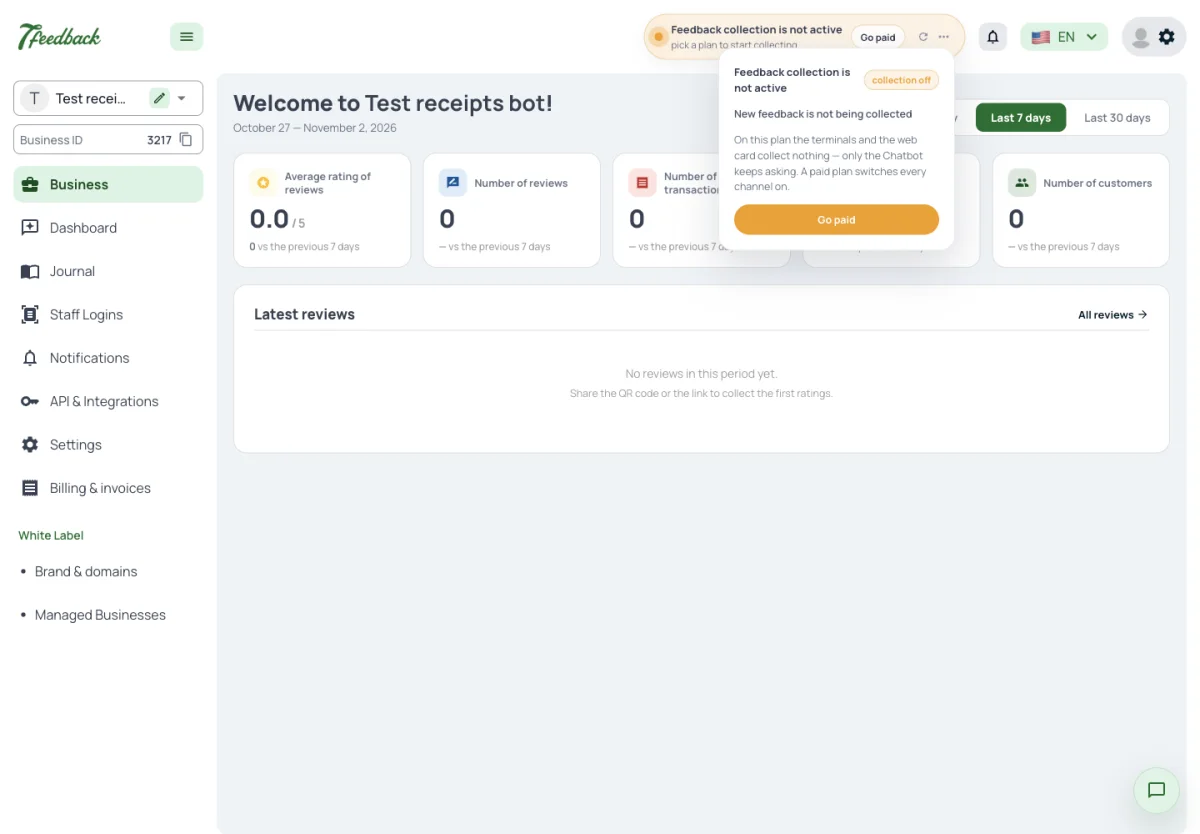
Admins see a banner at the top of every page that tells how collecting is going:
- without a plan — Feedback collection is not active, with Go paid;
- on a plan with a review allowance — the reviews left; it turns into a warning when most of them are used, and says Feedback limit reached when none are left;
- on a paid plan — the reviews collected so far.
The three dots open the details. When the allowance is used up, no place asks for a rating until the next period, the Chatbot included.
What does “reviews left” in the header mean?
Your plan includes a set number of reviews per period, and this is how many are left in the current one.
What happens when the reviews are used up?
No place asks for a rating until the next period, the Chatbot included, and Admins get a notice at most once a week. A paid plan has no limit.
My colleague does not see the banner. Why?
The banner is shown to Admins of the Business.
Customer data and deleting the Business
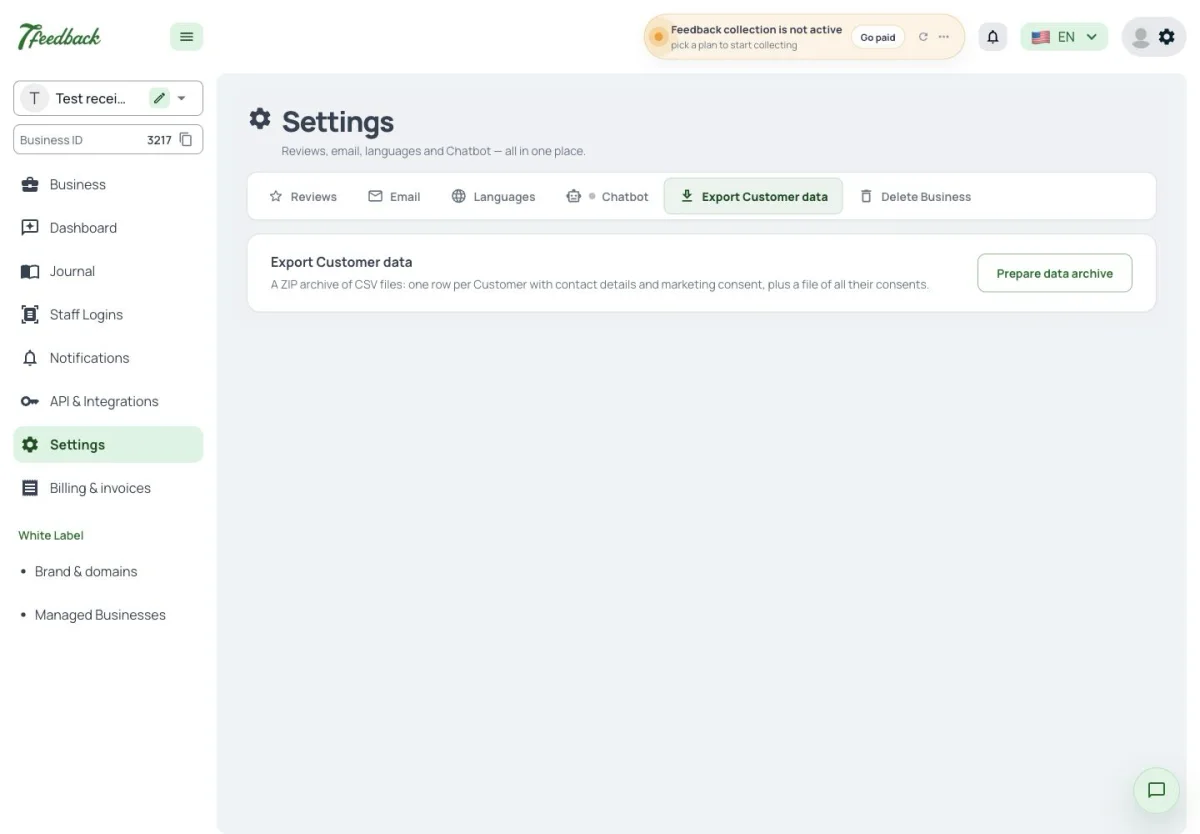
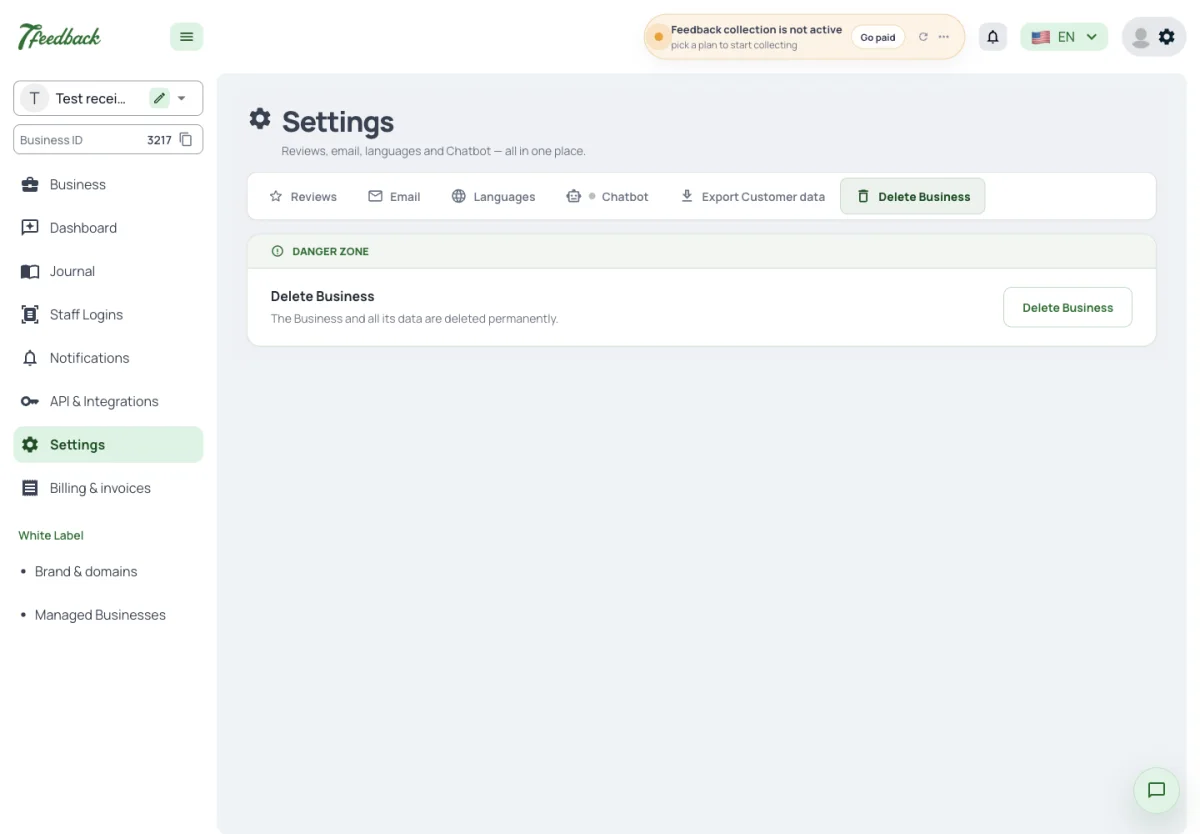
Export Customer data and Delete Business are the last two tabs of Settings. The Business page does not have them.
Export Customer data prepares a ZIP of CSV files with the Customers, their contact details and marketing consent, plus a file of all their consents; it is for the owner of the Business or a platform admin. Reviews are not in it; Export CSV in the Review journal downloads them.
Delete Business, in the Danger zone, deletes the Business and its data for good; an Admin of the Business can open it too.
How do I export my reviews?
With Export CSV in the Review journal. The Customer data archive in Settings holds Customers and consents, not reviews.
What is in the Customer data archive?
CSV files with the Customers and all their consents.
Where are Export Customer data and Delete Business?
In Settings, the last two tabs. They are not on the Business page.
Can a deleted Business be restored?
No. Delete Business deletes the Business and its data permanently.