Quick start
From sign-up to the first rating: create the account and the Business, choose a plan or start without one, and print the QR that comes with the Business.
Updated
How 7Feedback works
A Customer scans the QR on your counter or table and taps a rating on your scale; the rating alone is a whole review. After a negative rating the Customer can write privately to your manager; after a neutral or positive one the page can offer a Google review.
The QR belongs to a Staff Login — a workstation such as a counter, a device, a POS terminal or an API integration, not a person. The first Staff Login and its QR are created together with the Business.
Does a Customer need an app or an account to rate us?
No. The printed QR opens a web page; the Customer needs no purchase, no app and no sign-in.
What is a Staff Login in 7Feedback?
A workstation — a counter, a shared device, a POS terminal or an API integration. Each one has its own printed QR.
Do I have to set anything up before I can print the first QR?
No. The first Staff Login and its QR are created with the Business. Collecting starts once a plan with Customer feedback is active.
Sign up
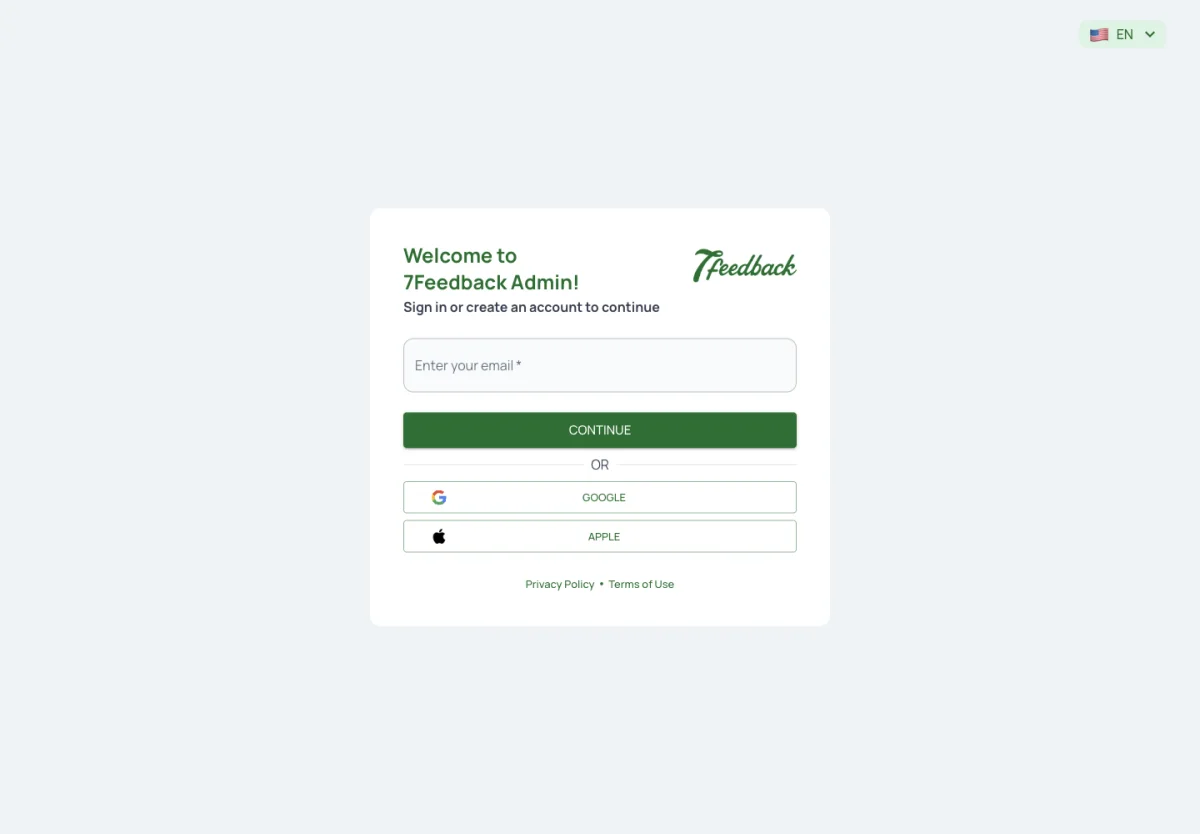
Open admin.7feedback.com and enter your email. A known email goes on to the password. A new one opens Create an account: first name, last name and a password. You can also continue with Google or Apple.
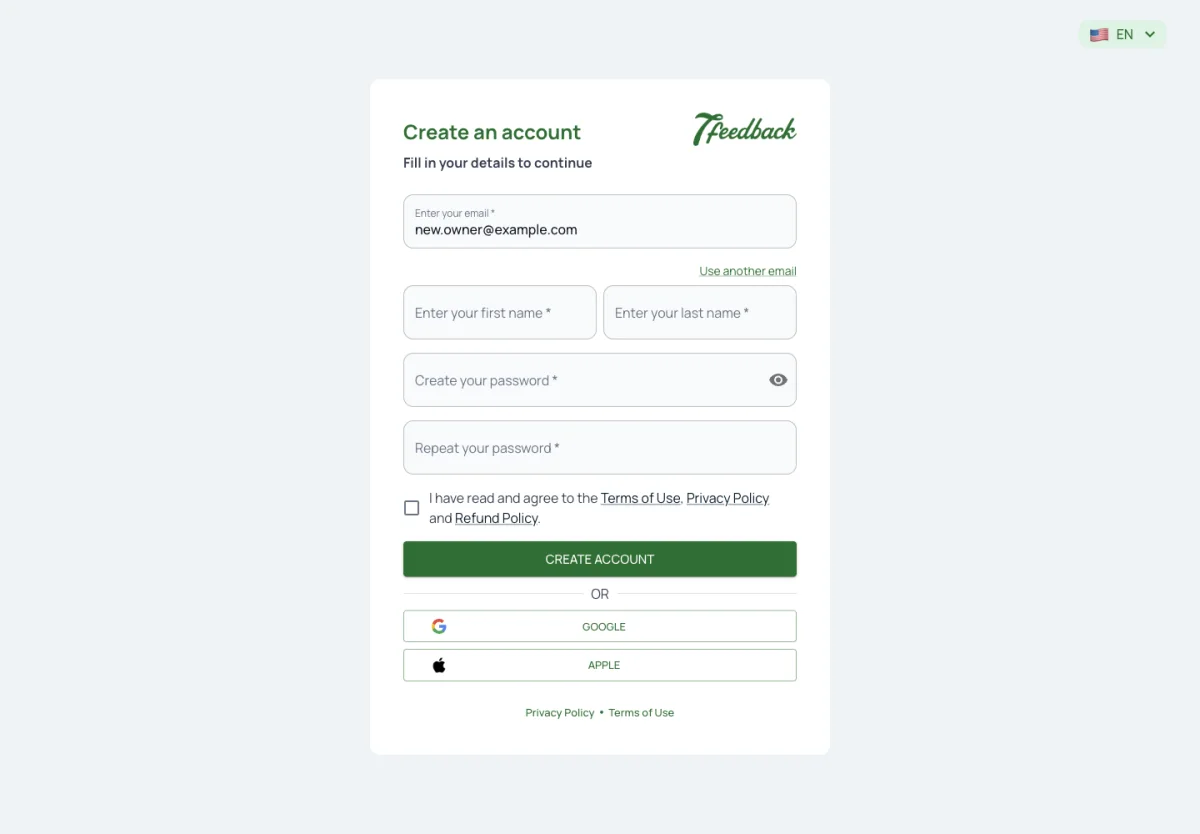
Where do I sign up for 7Feedback?
At admin.7feedback.com. Enter your email; a new email opens Create an account.
Can I sign up with Google?
Yes. Google and Apple are offered next to the email.
I already use 7Stamp. Do I need a new account?
No. The same account signs in; inside 7Stamp the same feedback is the Customer Feedback add-on.
Create the Business
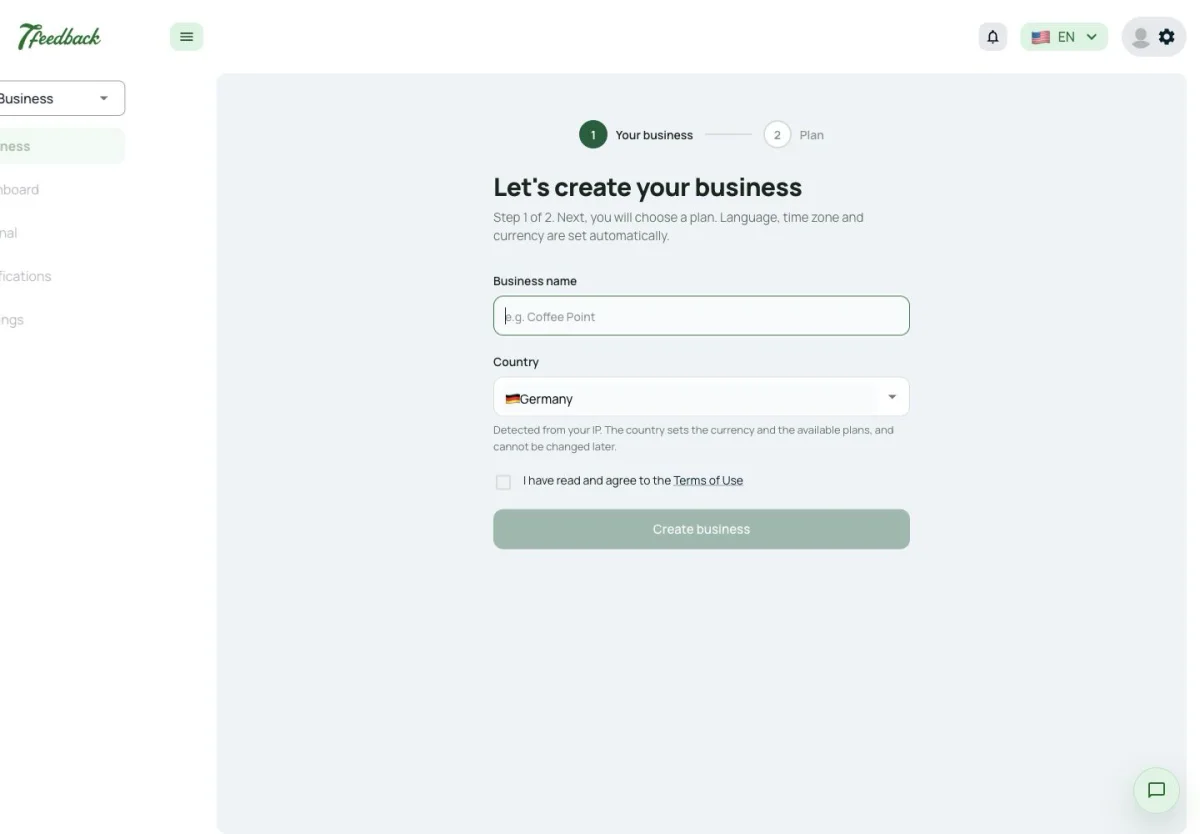
A new account creates its Business in two steps. First the Business: its name, the country and agreeing to the Terms of Use. Language, time zone and currency are set automatically.
The country is detected from your IP address; change it here if it is wrong. It sets the currency and the plans you are offered, and it cannot be changed later.
What do I need to create a Business?
Its name and the country, and agreeing to the Terms of Use. Language, time zone and currency are set automatically.
The country is wrong. Can I change it later?
No. Change it while the Business is being created — it sets the currency and the plans, and cannot be changed later.
Why do I see prices in hryvnia?
The currency follows the country of the Business. A Business in Ukraine sees its plans in hryvnia.
Choose a plan, or later
The second step shows the plans for your country. Pick one, or choose Choose a plan later — the Business is created either way and the admin panel opens its Business page. A plan can be chosen any time under Billing & invoices.
Until a plan with Customer feedback is active, the printed QR and your POS collect nothing: the rating page shows the Customer an error. Only the Chatbot, once connected, asks without a plan.
Can I start without choosing a plan?
Yes. Choose a plan later creates the Business; pick a plan any time under Billing & invoices.
I skipped the plan. Why does our QR show an error?
Without a plan that includes Customer feedback the printed QR and the POS collect nothing. Choose a plan under Billing & invoices.
Where do I land after creating the Business?
On the Business page, with the menu open.
Print the first QR
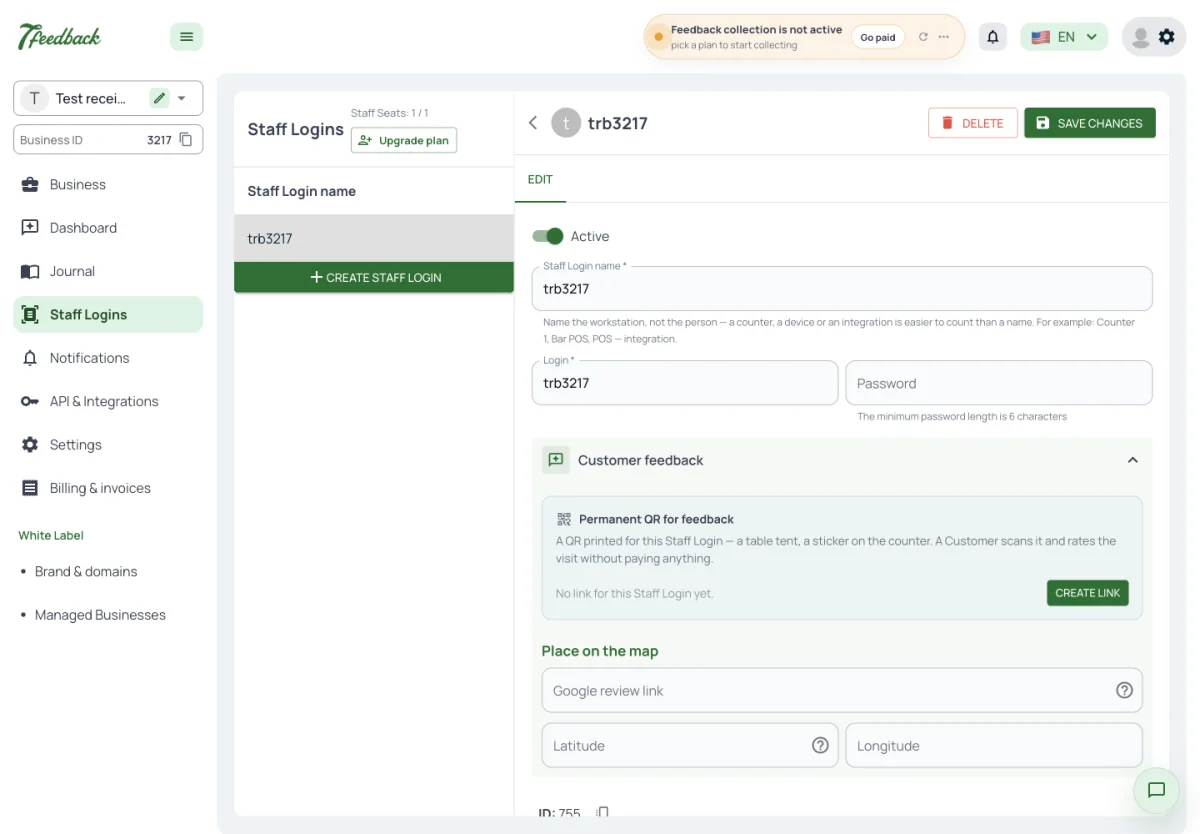
Open Staff Logins. The first one is already there, named after your Business, with Collecting feedback switched on. On its page, under Customer feedback, the permanent QR is ready: Print gives an A4 sheet headed How was your visit?, Open page shows what the Customer sees.
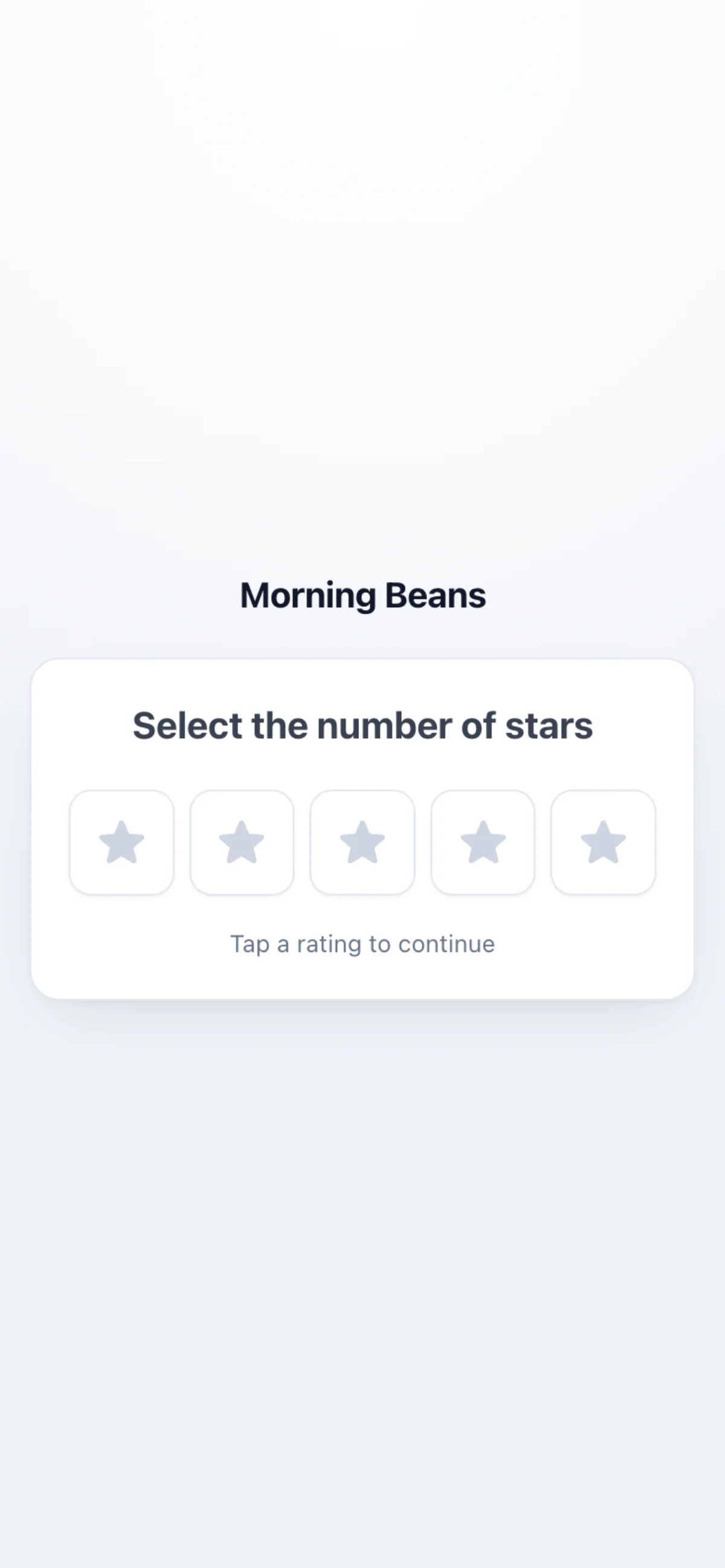
The page carries your Brand name and logo, or the Business name — not the 7Feedback brand.
Where is the QR to print?
In Staff Logins, on the Staff Login’s page, under Customer feedback — Print gives an A4 sheet.
Will my Customers see the 7Feedback brand?
No. The rating page shows your Brand name and logo, or the Business name.
How do I check the QR before printing it?
Use Open page next to Print — it opens the same page a Customer sees.
Keep in touch
On the first visit to the new Business the admin panel asks how 7Feedback should keep in touch — Telegram, WhatsApp, Viber or Email — for billing, setup and launch tips. A welcome email with a button to your Business arrives too.
Why does the admin panel ask how to reach me?
7Feedback writes about billing, setup and launch tips; you choose Telegram, WhatsApp, Viber or Email.
I did not get a welcome email. Is the Business created?
Yes — the Business exists as soon as the admin panel opens its page. The welcome email is only a greeting with a button to it.
Does the welcome email count against my Emails?
No. It is a system email.