
Settings
The Settings tabs in 7Feedback, how the Business sends emails, the Reviews tab card by card, and who can change what.
Updated
The tabs
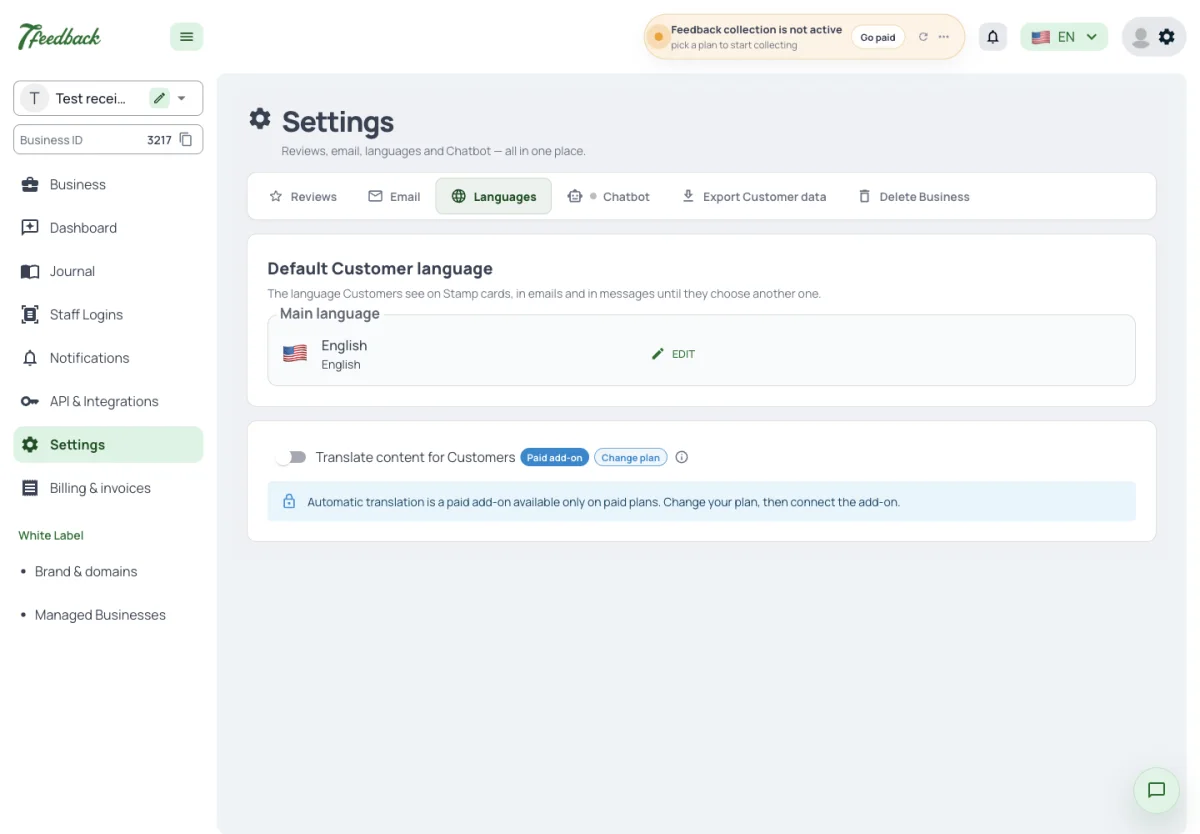
Settings in the menu has up to six tabs:
- Reviews — the Customer feedback settings, below;
- Email — how the Business sends its emails;
- Languages — the default Customer language and translation of your texts;
- Chatbot — your Telegram or WhatsApp bot;
- Export Customer data and Delete Business — the last two, shown only to the people allowed to use them.
Where are the 7Feedback settings?
Settings in the menu — the tabs Reviews, Email, Languages and Chatbot, and at the end Export Customer data and Delete Business.
Where do I set the language Customers see?
Settings → Languages, Default Customer language.
Where do I connect the Chatbot?
Settings → Chatbot.
Email sending
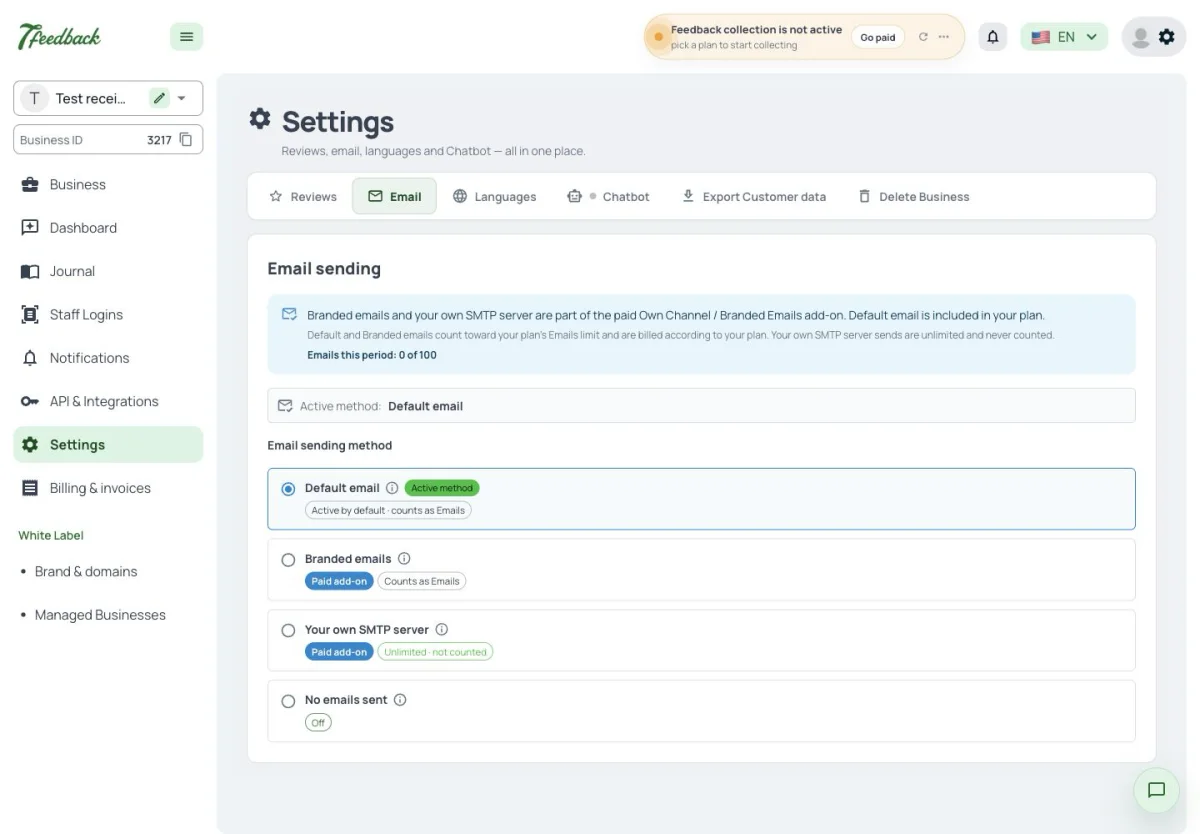
In Settings → Email, choose one active method for the Business: Default email, Branded emails, your own SMTP server or No emails sent. Branded emails and your own SMTP server require the paid Own Channel / Branded Emails add-on. Default and Branded emails count toward the plan’s Emails allowance; your own SMTP server does not. 7Feedback has no Stamp card transactional emails to set up.
Where do I choose the email sender?
Settings → Email. Choose one active method for the Business.
Can we send from our own SMTP server?
Yes, with the Own Channel / Branded Emails add-on. SMTP sends do not count toward the plan’s Emails allowance.
Which methods count toward the Emails allowance?
Default email and Branded emails. Your own SMTP server does not.
The Reviews tab
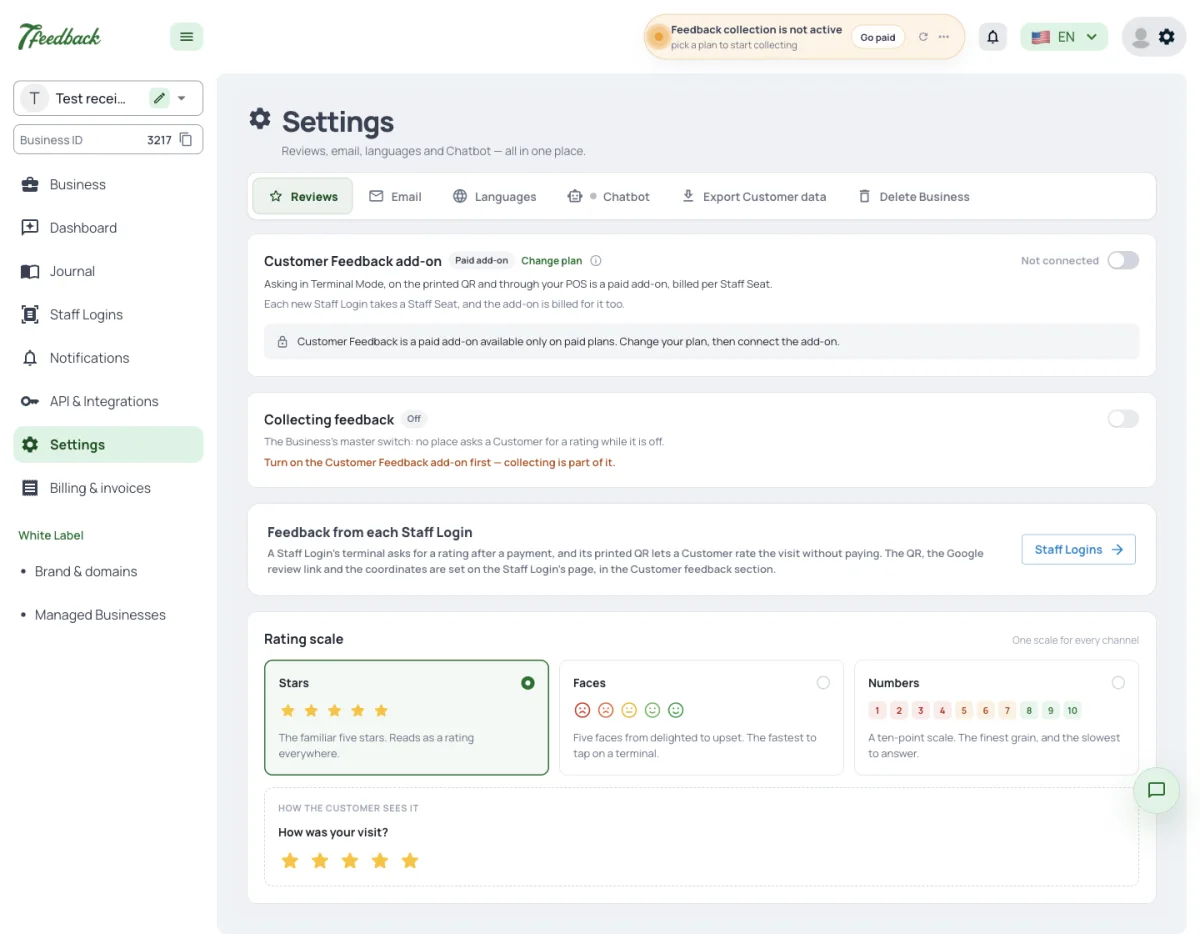
The Reviews tab has four cards:
- Customer Feedback add-on — whether asking in Terminal Mode, on the printed QR and through your POS is connected;
- Collecting feedback — the master switch: while it is off, no place asks for a rating, the Chatbot included. A 7Feedback Business has it on from the start;
- Feedback from each Staff Login — a pointer to Staff Logins, where the QR, the Google review link and the coordinates are set;
- Rating scale — Stars, Faces or Numbers, one scale for every channel. A change applies to the next rating.
How the scale reads each rating as positive, neutral or negative is in the Customer feedback article, Rating scale.
How do I stop collecting feedback for a while?
Turn Collecting feedback off on Settings → Reviews. No place asks while it is off, the Chatbot included.
Can I switch from stars to faces?
Yes, under Rating scale. The next rating uses the new scale; ratings already left keep theirs.
Where do I set the Google review link?
Not in Settings — on each Staff Login’s page, in the Customer feedback section.
Who can do what
Every admin panel user of the Business, Viewer included, can open the dashboard and the Review journal and export it. Marking reviews, the Collecting feedback switch and the scale need Editor or Admin; so do Staff Logins and API & Integrations. Billing & invoices and the add-on need Admin.
Can a Viewer export the reviews?
Yes. Every admin panel user, Viewer included, can open the journal and export it.
Why can’t I change the rating scale?
The scale needs Editor or Admin.
Who can change the plan?
An Admin — Billing & invoices needs Admin.